
Manual Index
-
Chapters
The Manual is divided into seven chapters. Click a chapter title to display that chapter's table of contents in the area below.
Chapter Four
Tools
- Intro to Tools
- Files, Forms & Templates
- Reports
- My Notes & Reminders
PSYBooks Manual
Chapter Four
Financial Reports
What this isThe Financial Reports give you detailed financial information on individual clients as well as your practice as a whole. Reports in the Financial Reports section are: Account Activity by Client, Claims & Statements, Past Due Accounts and Payments Received.What it looks likeLinks to access Financial Reports look like this: 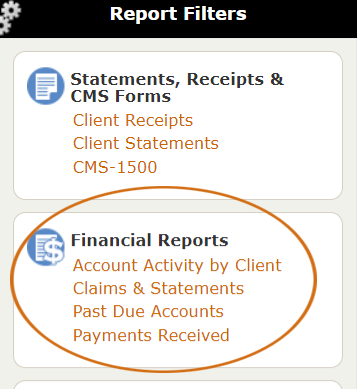 |
Where this isThe Financial Reports are listed in the left nav of the Reports tab in the Tools section. |
The Financial Reports can be useful for your practice's accounting needs and also for tasks such as when you want to see which client accounts are past due or whether a certain insurance payment has been posted. The Financial Reports section includes four different reports: Account Activity by Client, Claims & Statements, Past Due Accounts and Payments Received. Each will be discussed separately below:
Account Activity by Client
The filters for the Account Activity by Client allow you to select the client and date range for the transactions you want to see:
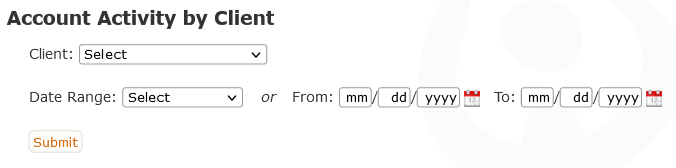
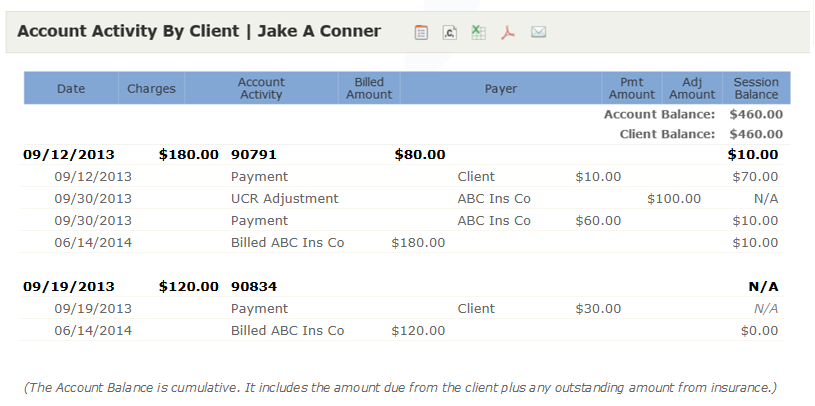
Once you've selected your client and date range that you want, the report you get shows all transactions on that client's account. In that way, this report is similar to the Sessions & Payments tab of the clients chart. A sample Account Activity by Client report might look like this:
Claims & Statements
The filter for the Claims & Statements report looks like this:
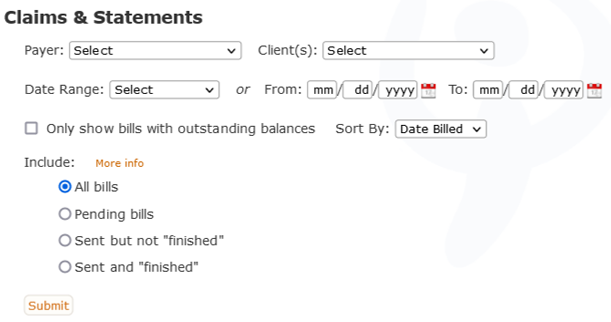
Options for the Payer dropdown box are: All Claims & Statements, Insurance Claims Only and Client Statements Only:

You can then use the Client(s) dropdown box beside it to further refine your choice. For example, the following screenshot was obtained by choosing Insurance Claims Only and then a fictitious client named Jake Conner:
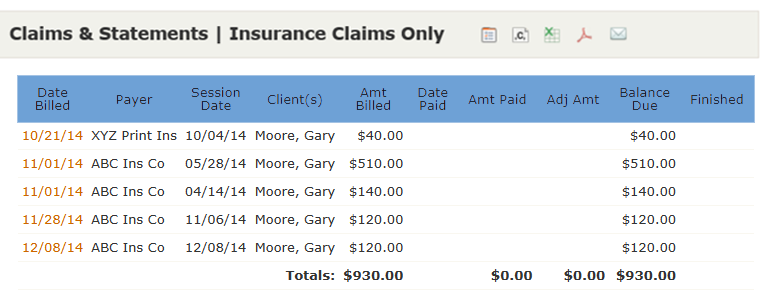
We can see at a glance that claims during this date range were sent to two different insurance companies (in this case, ABC is Gary's primary and XYZ is his secondary) and that so far, we have not received any insurance payments on any of these claims. (Or at least they haven't been entered in PSYBooks.) The Date Billed column contains links that will open the CMS form that was generated for that particular claim, allowing you to see the entire thing.
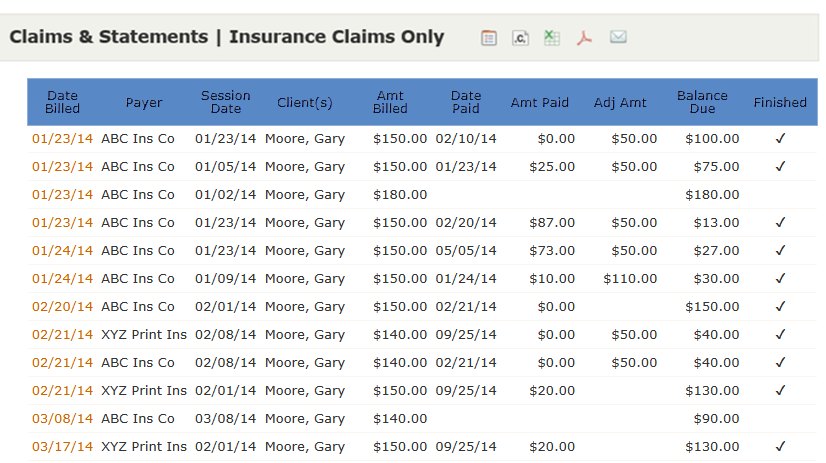
If we enter an older date range for the same client, we now see many claims that have been paid and a few that still have not. We can also see which claims have been finished:
We can refine this report even more by using the "Only show bills with outstanding balances" checkbox and/or the "Include" radio buttons in the report's filters:
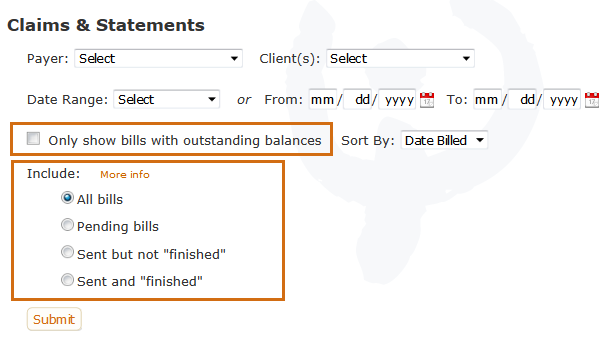
The "Only show bills with outstanding balances" checkbox brings up those claims that still have balances due. The balances might be expected from any payer, e.g., one or more of the client's insurance companies or from the client.
By using the "Include" radio buttons, we can get more specific. For example, we might want to see only those claims that still have outstanding balances from insurance. In that case, we could choose the "Sent but not "finished" radio button to see those claims that have been sent to an insurance company, but that have not yet been marked "finished". "Finished" means all expected payments from that payer have been entered and the claim has been processed to the next payer. If there is no next payer (i.e., the current payer is the client), "finished" means that the session now has a zero balance. Another way of thinking of it is that when we are "finished" with a payer, we don't expect any further payments from them. We've either processed the remainder of the balance to the next payer or written it off.
Past Due Accounts
The filters for the Past Due Accounts report look like this:
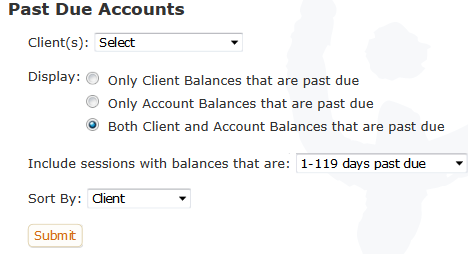
This report allows you to select all clients or just one. It also allows you to differentiate between displaying Client Balances and/or Account Balances. (The Client Balance is the amount the client owes whereas the Account Balance is the sum of the amount owed by the client plus any amount owed by insurance companies.)
The include dropdown gives you many options for the number of records that get displayed:
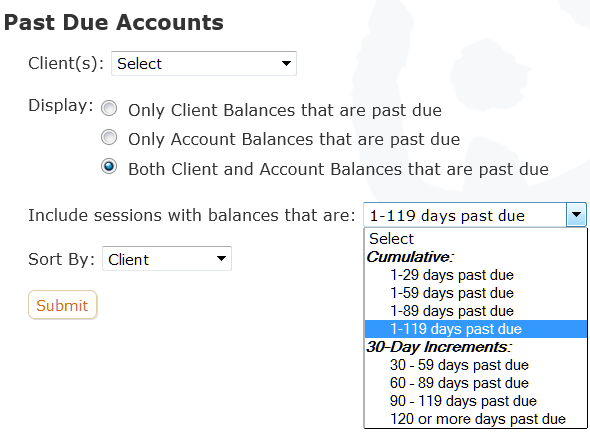
The following report was run for all clients, displaying only client balances for sessions that are 1-119 days past due and was sorted by client:
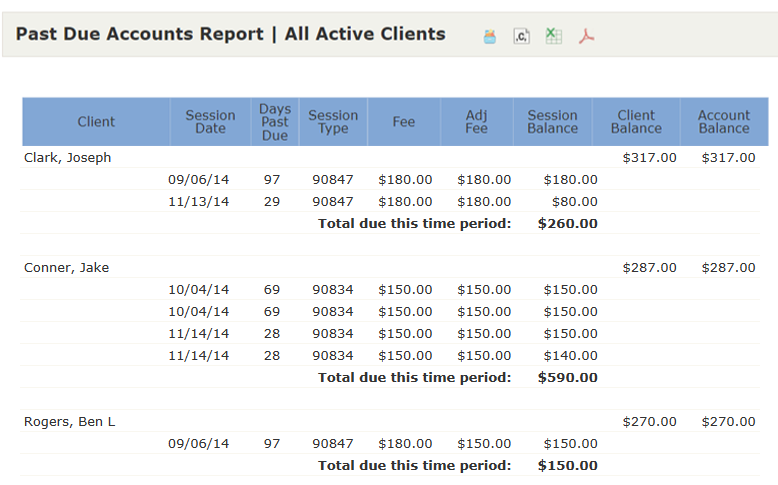
Notice that the table also displays both the Client Balance and the Account Balance for each client on the report. This allows you to see the complete totals due for each of these clients. In contrast, the "Total due this time period" only sums the balances of each of the sessions on this particular report. It may or may not match the complete Client and/or Account Balances owed on the account.
Payments Received
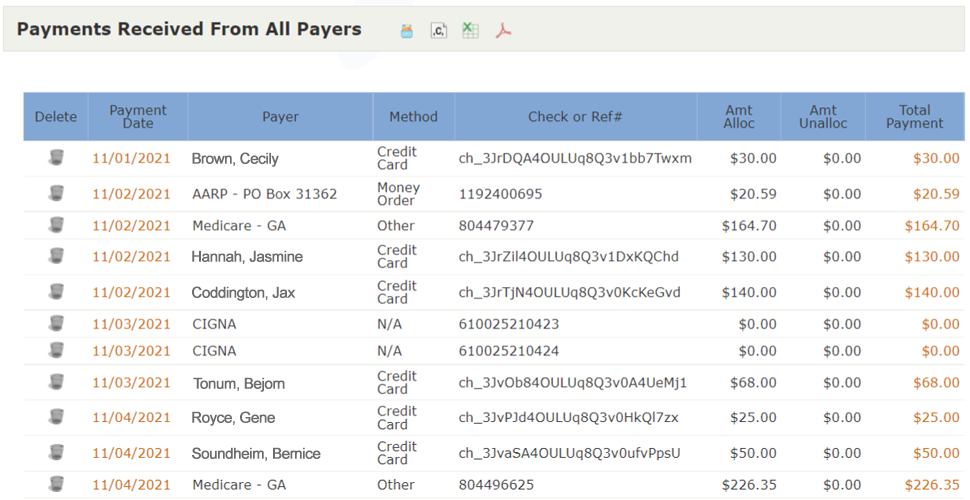
The Payments Received report gives you information on all payments you've received during the time period you specify. In the report filter, you can choose whether you want to see all payments, only payments from clients or only payments from insurance companies. Notice that this first screenshot has a filter for Providers. This filter is only available on accounts of the Master Clinical account holder of a Groups/Clinic account. This allows them to compute the amount of income each of their employees has brought in for the date range chosen. When the MC choose to sort by Provider, they're also given a checkbox to indicate whether they want to subtotal by Provider. All other fields are the same across all account types:
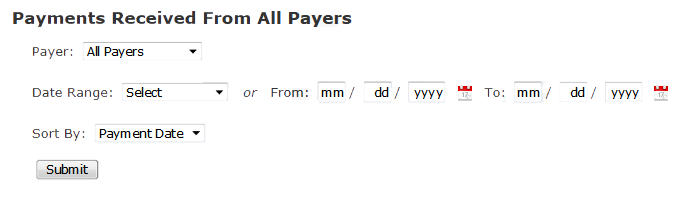
The actual report tells you the total amount of each payment and also, the amount of the payment that's been allocated plus any unallocated amount. This makes this report useful in finding payments you might have missed that need to be allocated. For subscribers using the Stripe payment processing that's built in to the program, the reference numbers are automaticlly listed. The report also has a tool that allows you to delete payments that may have been entered in error: (The report below was generated from an Individual account so it does not show the Group/Clinic features mentioned above.)